Welcome to The Real Blogger Status - Beta. Please note the warnings (as of 6/13: 0 active), and the alerts (as of 1/10/2007: 5 active).

Please be aware of the naming variances in this blog. You will find various references to "Classic" / "Old Template 2006" Blogger, and to "Beta" / "New Template 2006" Blogger.
Showing posts with label header. Show all posts

Monday, November 27, 2006

Using Background Images

Background images make the blog so much more colourful than plain old solid colour backgrounds. A background image

  • Is not clickable.
  • Shows up only where no foreground content is present.


(Note): This post has been migrated to (and improved in) The Real Blogger Status: Background Images In Your Blog.

Look at using a background image under the text title, for instance. Note that this is the opposite from replacing the text in the title with a picture. If you put a picture in the title, no background will be visible, unless you intentionally make the picture too small for the title space, or use a transparent .gif file for an image.

We do this using CSS rules. Look in the template for
#header-wrapper {
width:660px;
margin:0 auto 10px;
border:0px solid $bordercolor;
}

Change that to
#header-wrapper {
width:660px;
margin:0 auto 10px;
border:0px solid $bordercolor;
background: url(http://whatever.wherever.com/what.gif) no-repeat 0px 0px;
}

The CSS object "header-wrapper" is the Beta standard name for the screen area which will contain the text blog title and blog description. If you have, separately, tweaked your header, any of the above settings may differ. Just add the "background" rule.

If you have a Classic blog, your template may or may not use a CSS rule to define the header. It may or may not use a CSS object "header-wrapper". Be aware of the possibilities. You could, conceivably, have a <div> tag, with all of the rules defined there in the HTML.
<div style="width:660px; margin:0 auto 10px; border:0px solid $bordercolor;"> ... </div>

if so, change that to
<div style="width:660px; margin:0 auto 10px; border:0px solid $bordercolor;background: url(http://whatever.wherever.com/what.gif) no-repeat 0px 0px;"> ... </div>


You can apply a background image to any area in the blog, not just the header.
body {
...
background: url('whatever.wherever.com/what.gif');
...
}

With any large screen area, your image will probably be smaller than the area being covered. You'll probably not use "norepeat", so your background image gets reused, repeatedly, in a checkerboard pattern, over the entire area.

For more information, see the W3Schools tutorial: CSS Background

Thursday, September 14, 2006

Beta Evaluation

Today is September 16. I made my first post in this blog on August 16, so this is my one month evaluation.

The Good


  • Labels.
  • Archives, to replace Previous Posts.
  • The Page Layout editor / GUI Template.
  • The improvedTemplate editor.
  • Private blogs, requiring authentication.
  • The improved Main Page view.
  • The improved Edit Posts screen.
  • Various minor tweaks.
    • The Edit Posts screen lets you page forward and backwards, when there are more posts then will fit on the maximum requested posts screen.
    • The post editor actually highlighted an error, in addition to saying that I had made one.
    • Instant publishing - no spinner of death.


The Bad


The Ugly


The Good

Labels
If I was to pick one feature which would keep me in a Beta Blog, it would be Labels. The ability to associate posts by keyword, dynamically, is useful. Just that. But take that ability, and generate a custom main page view, of all posts with that keyword. Way more than useful. Very user friendly.

Archives
The old 10 Previous Posts list is no more, it's been integrated with the archives.

The Page Layout (aka Page Elements) Editor
The ability to customise 75% (my guess) of all blog features, using a GUI process, is a big relief. The template editor is not very user friendly. But defining commonly used features in a GUI process, and letting us change their characteristics, goes a long way towards making the template editor unnecessary.

Just moving elements within the page is a major improvement. Want a link list at the top of the sidebar? Grab it, drag it, and drop it. Want to change colours and / or fonts? We now have a standardised setting process for that. No more "Why did that change size?").

The slightly improved Template editor.
The template editing process, while substantially like the old, helps you to save and restore your current template, using a GUI process. This will encourage each of us to save our templates more readily, which will reduce stress level when editing templates, which may reduce mistakes. I know that it will for me. Plus we can make smaller changes, leading to more understanding of what we are doing, and possibly less mistakes.

And a possibility for endless activity - template HTML now supports Javascript. I am just getting in to this - but there is real potential for pushing into new territory.

Authentication
Using a Google account / password to authenticate ourselves allows blogs to be made private for viewing, as well as for adminstration. And it integrates well with the menu of blogs (ie "dashboard") under our control.

The Improved Main Page View
Under Classic Blogs, you could have 2 views - main page, and article. You could have an article view of any specific post, but you could have a sequential ("main page") view of only the latest 10 (or whatever number the blog owner determined) posts. If the articles of interest weren't in that latest x number, it was time to look by post name. Oh yes, there was no post name list (excepting of course the 10 previous posts). Good luck finding a post by title!

Now, your main page view is unlimited. The limitation simply affects how many in a single view - when you get to the end of the page, just hit "Newer" or "Older". And integrating Label search results into main page view makes it great.

The Vastly Improved Edit Posts Screen
Start with the first improvement that I saw weeks ago. When you peruse the Edit Posts list, if you decide upon a limit of 50 posts, that's now just 50 posts on the first screen. More than 50 posts? Hit "Older" ("Newer").

And it gets better. All posts are listed, with their Labels. Want a comprehensive list, by post, of all labels used? Here it is.

And in another column is a master list of all labels. If you click on one, the list of posts shows all posts for that label. And each post listing all labels for that post. Want a labels cross-reference? Here it is.

And we have ability to select listed posts, and then to add or remove a selected label. Need to change one label for another? Here's a list to do this from, quite painlessly.

And a minor (but not very much so) item. For each post with Comments, you get a link to view the comments for that post.

Various Minor Tweaks
A nice experience here. I actually went to Publish a post, and was told that I was missing an opening "<a>" (unbalanced "</a>"). The difference here was that it highlighted the offending "</a>"!

The spinner of death is no more. When you Publish a post, or edit the template, your changes save instantly. No more waiting. YAY!

The Bad

Feeds

Authentication

Publishing To External Servers

Post Summaries

There's No Going Back, Folks!

Not all features are available to blogs that are published externally (aka FTP blogs).

>> Top

Wednesday, September 06, 2006

Customising The Header #2

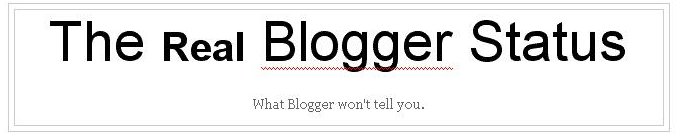
Replacing the boring text title in your blog is easy enough. Making it look really pretty is easy - when you know how.

Removing the header element in a Beta blog is not too hard. Replacing the template entry, or adding a new header page element, isn't terribly difficult. But some templates require just a bit more work. if you want to do a good job.


I started out with a plain text header, the default for Minima, in a pair of ugly boxes.


I replaced the default blog header with an HTML page element.


<a href="http://bloggerstatusforrealbeta.blogspot.com/index.html"><img border="0" src="http://photos1.blogger.com/blogger2/560/527000594325287/
1600/RBS%20Header%201.gif"/></a>
<p align="center">What Blogger won't tell you.</p>

The graphic content is nicer, but still the ugly boxes.


I then had to edit the template HTML.

I found the code for the Blog Title.
<div id="header">
<a name="Top"></a>
<h1 id="blog-title">
<ItemPage><a href="<$BlogURL$>"></ItemPage>
<$BlogTitle$>
<ItemPage></a></ItemPage>
</h1>
<p id="description"><$BlogDescription$></p>
</div>


That shows that I have 3 containers - "blog-title", "description", and "header" - to examine. Two containers = "blog-title" and "description" - are peers, and together make one box. That one box is enclosed by "header", which is the second box. And there are the 2 ugly boxes.

The rules, for each container, are in the Header section of the blog header code.

/* Header
----------------------------------------------- */
@media all {
#header {
width:660px;
margin:0 auto 10px;
border:1px solid #ccc;
}
}
@media handheld {
#header {
width:90%;
}
}
#blog-title {
margin:5px 5px 0;
padding:20px 20px .25em;
border:1px solid #eee;
border-width:1px 1px 0;
font-size:200%;
line-height:1.2em;
font-weight:normal;
color:#666;
text-transform:uppercase;
letter-spacing:.2em;
}
#blog-title a {
color:#666;
text-decoration:none;
}
#blog-title a:hover {
color:#c60;
}
#description {
margin:0 5px 5px;
padding:0 20px 20px;
border:1px solid #eee;
border-width:0 1px 1px;
max-width:700px;
font:78%/1.4em "Trebuchet MS",Trebuchet,Arial,Verdana,Sans-serif;
letter-spacing:.2em;
color:#999;
}


There are a total of 5 relevant rules, in my case.
#header
border:1px solid #ccc;
#blog-title
border:1px solid #eee;
border-width:1px 1px 0;
#description
border:1px solid #eee;
border-width:0 1px 1px;


I changed all "1px" to "0px".

/* Header
----------------------------------------------- */
@media all {
#header {
width:660px;
margin:0 auto 10px;
border:0px solid #ccc;
}
}
@media handheld {
#header {
width:90%;
}
}
#blog-title {
margin:5px 5px 0;
padding:20px 20px .25em;
border:0px solid #eee;
border-width:0px 0px 0;
font-size:200%;
line-height:1.2em;
font-weight:normal;
color:#666;
letter-spacing:.2em;
}
#blog-title a {
color:#666;
text-decoration:none;
}
#blog-title a:hover {
color:#c60;
}
#description {
margin:0 5px 5px;
padding:0 20px 20px;
border:0px solid #eee;
border-width:0 0px 0px;
max-width:700px;
font:78%/1.4em "Trebuchet MS",Trebuchet,Arial,Verdana,Sans-serif;
letter-spacing:.2em;
color:#999;
}


And no more ugly boxes.

Want more ideas? How about using background images (aka wallpaper)?

Tuesday, September 05, 2006

Customising The Header In A Beta Blog

Earlier, I wrote about how to Restore The Main Page Link To The Title, in a Beta blog. That was a hack, and a messy one at that. Blogger fixed that little omission, so it's no longer necessary. The blog title is now clickable, and links back to main page view - in a blog with default setup - just as it did for a Classic blog.

But it's still boring text - a title, followed by a description.

So some will ask

How do I customise my blog header? How do I (for instance) replace the boring text title with a picture?


You can make this change as you would in a Classic blog, if you wish to edit the template HTML. Personally, I use the GUI Page Layout editor.

Go into Template - Page Elements. Edit the Blog Header element.

You have several choices here, with the Blog Header.
  1. Put code into the Blog Title field. You could put both a link and an image into there
    <a href="http://bloggerstatusforrealbeta.blogspot.com/index.html">
    <img border="0" src="http://photos1.blogger.com/blogger2/
    560/527000594325287/1600/RBS%20Header%201.gif"/></a>

    except for one major problem. It just won't fit.
  2. You could put the code into the Blog Description, except for another limitation. You can't have a blank Blog Title field. If you put your header code into Blog Description, what can you put into Blog Title that doesn't look tacky?
  3. I prefer to get rid of the Blog Header altogether, and replace it with a straight HTML page element.
  4. You could remove the Blog Header, and replace it with a background image.
See my article The Real Blogger Status: What's In The Header or How Do I Keep My Blog Searchable? for more discussion about this issue.


If you're lucky, you can just remove the Header page element.


If not, you won't be able to remove it, immediately.


If you see the second image - ie no "Remove Page Element" button, go to Edit HTML. Find the section of code


<div id='header-wrapper'>
<b:section class='header' id='header' maxwidgets='1' showaddelement='no'>
<b:widget id='Header1' locked='true' title='The Real Blogger Status Beta (Header)' type='Header'/>
</b:section>
</div>


and change "locked='true'" to "locked='false'".

<div id='header-wrapper'>
<b:section class='header' id='header' maxwidgets='1' showaddelement='no'>
<b:widget id='Header1' locked='false' title='The Real Blogger Status Beta (Header)' type='Header'/>
</b:section>
</div>


Then Save Template. Go back to Page Elements.


Now you can just remove the Header page element.


Now, just add a Page Element - HTML. Put whatever code you wish, in the body of the element.


<a href="http://bloggerstatusforrealbeta.blogspot.com/index.html"><img border="0" src="http://photos1.blogger.com/blogger2/560/527000594325287/
1600/RBS%20Header%201.gif"/></a>
<p align="center">What Blogger won't tell you.</p>


The added element will be in the sidebar, or the footer (wherever you created it), so grab it, drag it, and drop it into place atop the blog, where the Header element used to be.

Positioning the new header will require some experimentation; when you move the new element over the area where the header should be, it may drop centered on top of the post column. When it does this, move it ever so gently upwards a couple pixels or so, until it positions properly. When it is properly positioned, release it, and it will fall into place, properly positioned and sized.

Save the changes to the Layout.

Now add or update the meta tags, in the blog header. This gives you an attractive entry in a search hit list.

And finish the job properly - remove the ugly boxes, that are placed around the header by most default templates.

(Edit): In case you're wondering, making the header itself was easy, and involved no expensive software.
  • I used Microsoft Word to make the characters.
  • I did a Print Screen (Alt-Print Screen) to copy the image to the clipboard.
  • I pasted the image into Paint.
  • I saved the image as a .bmp file.
  • I used Irfanview (freeware) to trim the image, resize it, and make it into a .gif with a transparent background.

Sunday, August 20, 2006

Restore The Main Page Link To The Title

For every seasoned Blogger, whenever you setup a Blogger Alpha blog, and go to view an individual article, selecting the title of the blog would always get you back to main page view. That is one of the most standard features in any Alpha blog.

Not so with Beta. And since you can't edit the template, you're stuck. Right?

Wrong. You can't edit the template itself - raw template access isn't provided. But you can edit the individual page elements.

Go into Template - Page Elements, and edit the element with the title in it. In my case, I find

The Real Blogger Status Beta
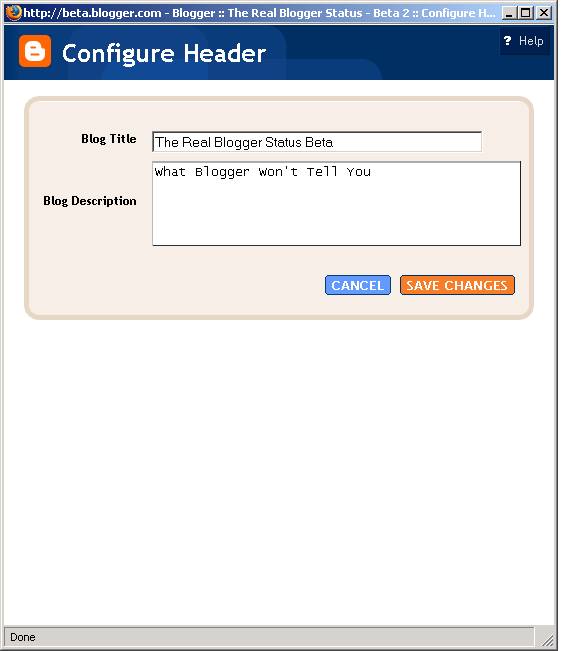
and I select the Edit link. I see the Configure Header window. It has the Blog Title
The Real Blogger Status Beta
I add a hypertext link, and make it
<a href="http://bloggerstatusforrealbeta.blogspot.com/index.html">The Real Blogger Status Beta</a>
select SAVE CHANGES then SAVE. When I select View Blog, I see my blog now as before, but with one difference - clicking on the title now takes me to main page view.

Having said that, I note several exceptions.
  • The title is now clickable from every view (no more distinction between main page view, article view, and archive view).
  • The length of the title is critical. See the above setup for my title? Try adding just 2 more characters. One more may add, but a second won't. You won't get an error - unless the necessary character is a control character that affects the syntax, as mine was. Here's a hint: the title of this blog used to be
    The Real Blogger Status - Beta
    Do you see the difference?
  • Look at the entry in the dashboard. Not too neat now. I can live with that, though, to have a clickable title. Can you?
All in all, it's a workaround. But, until BS gives us raw template access, or puts back what should be there in the first place, we're stuck. But this still beats Blogger Alpha.

(Edit 9/2): While surfing, I just noticed that many blogs don't have this limitation any more. Another fix provided in silence.